Sales in touch mode
Sales in touch is a simple and fast process, some parts of this can also be skipped situationally as outlined below.
Firstly here is what the layout will look like, this may vary depending on your touch screen layout set up and if you are using quick sale, simple, or normal touch screen buttons.
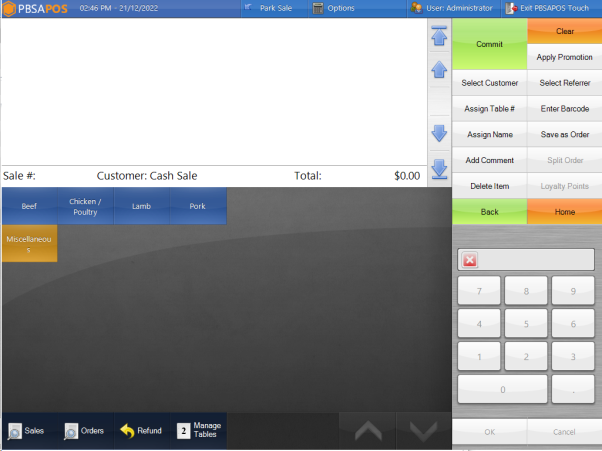
You are able to add products either via pressing their related buttons, searching from the options menu then selecting search for products, or by scanning a barcode.
The default customer will always be selected, in our example this is called cash sale, however by pressing Select Customer on the right hand side you can choose the appropriate customer so that the sale goes into their history and is easily findable for future reference.
When the sale is ready for finalisation press Commit in the top right, this will bring you to the below screen with your payment types.
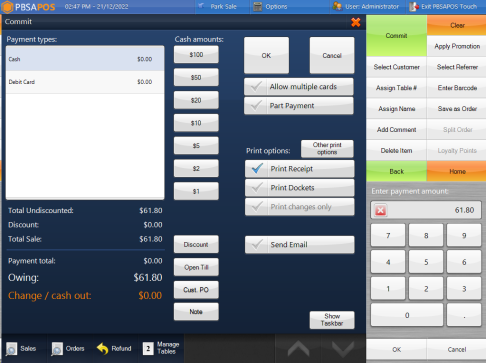
You are able to split the payment between as many payment options as you want here, before pressing OK to complete the sale.
When splitting the sale you can select each payment type on the left, and enter the amount of payment of that type you will receive. In the case where its multiple cards being used via Eftpos simply tick the option below OK called Allow multiple cards. This will bring up a new window which will ask how much to charge the first card, then the second once the first pays, and so on until the sale is paid.
Once this is done it will return you back to your home screen to start the next sale.