Product Prices
Product prices can be managed in a range of ways, below is a short guide on each method.
 Updating prices on product cards
Product prices can be easily managed on a product card, as shown below you can select the rule you want to use and fill in the amount field.
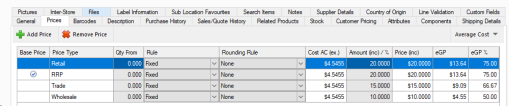
The amount field is for either the dollar value or percentage, which is depending on what rule you are using. The most common is Fixed, which is where it just sets the price to the dollar value entered into the amount field.
Creating default price rules
Default price rules will only apply to newly created products, and won't change the prices on existing products.
You can set these up by going into File > Settings > Defaults > Product Defaults. In here you will see the below options.
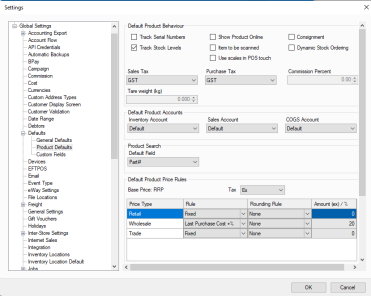
In here you can select a price type and set up the rule, any rounding rules, and the amount to use for any new product.
An example would be as shown above to set your Wholesale price to be the last purchase cost plus 20%, this way when a new incoming good comes in the prices automatically change to accommodate the new last purchase cost. This saves time both when creating the new products, by setting this price up, then also saves time by automatically adjusting the price based on that last purchase cost.
Managing prices in product bulk editor
You can read more about the product bulk editor here.
This tool allows you to select a range of products, and apply new pricing rules to them.
The work flow for this is outlined below.
1. Select your product range you would like to update, and press populate.
2. Select the price type in the top right corner that you wish to update.
3. On the Re-Price tab set the rule, rounding rule, type of change and amount to change it by.
4. Press Apply to all to update every product, or highlight the products you wish to alter and press apply to selected.
Volume pricing & Group Volume pricing
These sections have their own dedicated page you can read more on here:
Updating prices while receiving an incoming good
When brining in an incoming good you can select to reprice the products it contains. This can be done from the prices drop down in the top right, as shown below.
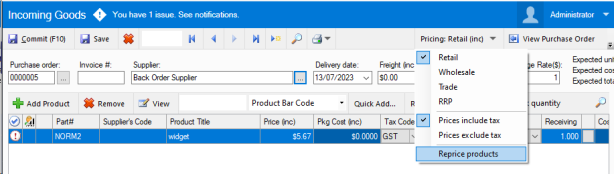
Once this is selected the price tab will be editable on the line items, and on commit of the incoming good this will change the prices of these products immediately. The price type it alters is based on the price selected in the same menu you select reprice from.
Pricing rules and definitions
Below is an outline of each pricing rule and how it operates, in order of how they display when selecting the drop down menu.
Fixed: This will use the amount field value as a dollar value price.
Average cost +%: This will take the average cost and add a percentage, only usable when tracking stock.
Average cost +$: This will take the average cost and add a dollar value, only usable when tracking stock.
Base Price -% : This will reduce the base price by a percentage, and updates any time the base price changes.
Base Price -$ : This will reduce the base price by a fixed dollar amount, and updates any time the base price changes.
Base Price +% : This will increase the base price by a percentage, and updates any time the base price changes.
Base Price +$ : This will increase the base price by a fixed dollar amount, and updates any time the base price changes.
Buy Cost +% : This will increase the buy cost of Supplier 1 by the set percentage.
Buy Cost +$: This will increase the buy cost of Supplier 1 by the set dollar amount.
Last Purchase Cost +%: This will increase based on the last purchase cost by a set percentage, this updates when you receive an incoming good for this product.
Last Purchase Cost +$: This will increase based on the last purchase cost by a set dollar amount, this updates when you receive an incoming good for this product.
Creating new Price Types, and related settings
You can create new price types by going to Settings > Global Settings > Price Types. In here you can press Add to create new prices or Remove to remove a no longer in use price type
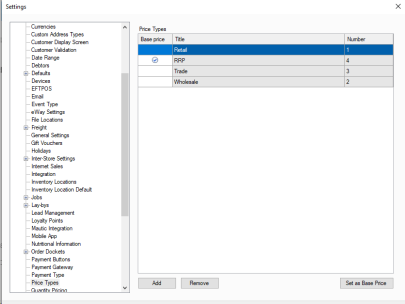
You are able to set your base price for pricing rules here by highlighting the price you want to use and pressing Set as Base Price.
The default price can be set by going to Global Settings > Defaults > General Defaults. In here under Customer Defaults you can select the price type you want customers to get by default when created.
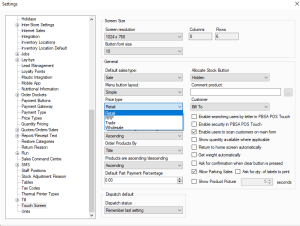
Your touch screen price type can also be set by going to the touch screen settings as shown below, and selecting the price type you want to use in touch mode.